Blur Sensitive Info
Draw over any region to instantly pixelate it. Hide emails, names, passwords, or any private data before sharing a screenshot.
A fast, lightweight screenshot editor built right into Chrome. Blur sensitive info, add arrows and shapes, crop and export — no login, no uploads, no waiting.
Features
Built for speed. No account, no cloud, no heavy editor — just open and annotate.
Draw over any region to instantly pixelate it. Hide emails, names, passwords, or any private data before sharing a screenshot.
Add tapered arrows, rectangles, and ellipses to call out anything. Choose from 8 colors and three thickness levels.
Click anywhere to place a text annotation. Adjustable font size (8–128 px), full color control, and in-place editing with keyboard shortcuts.
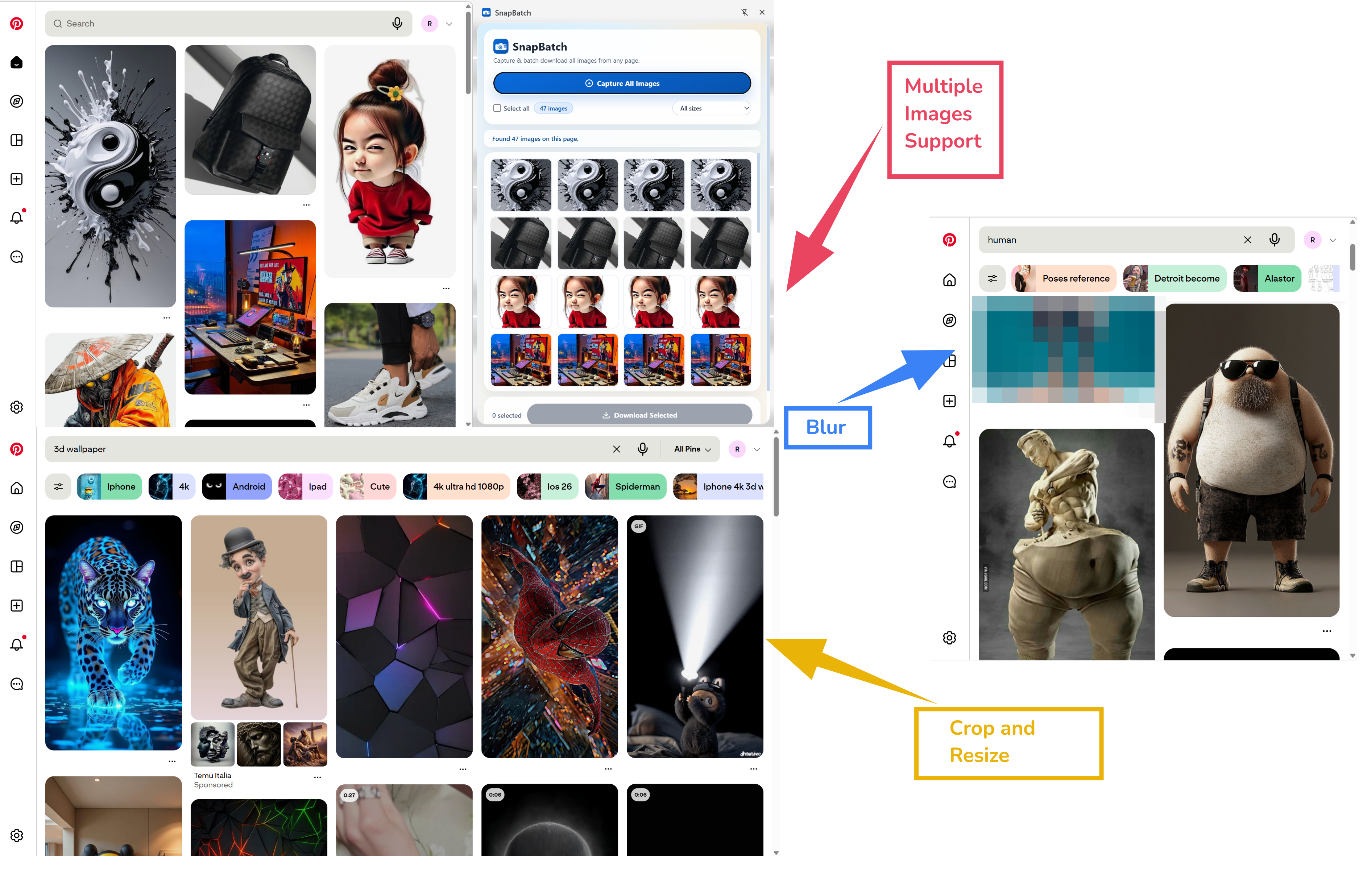
Draw a crop rectangle and apply with one click. Add instant white padding around the image for presentations or docs.
Press Ctrl+V to paste a screenshot directly. Take a screenshot, switch to the tab, paste, and annotate — zero friction.
Download as lossless PNG, compressed JPG, or copy the finished image straight to your clipboard for instant pasting anywhere.
See it in action
A clean, focused editor that opens in a new tab — no switching apps, no sign-in screens.
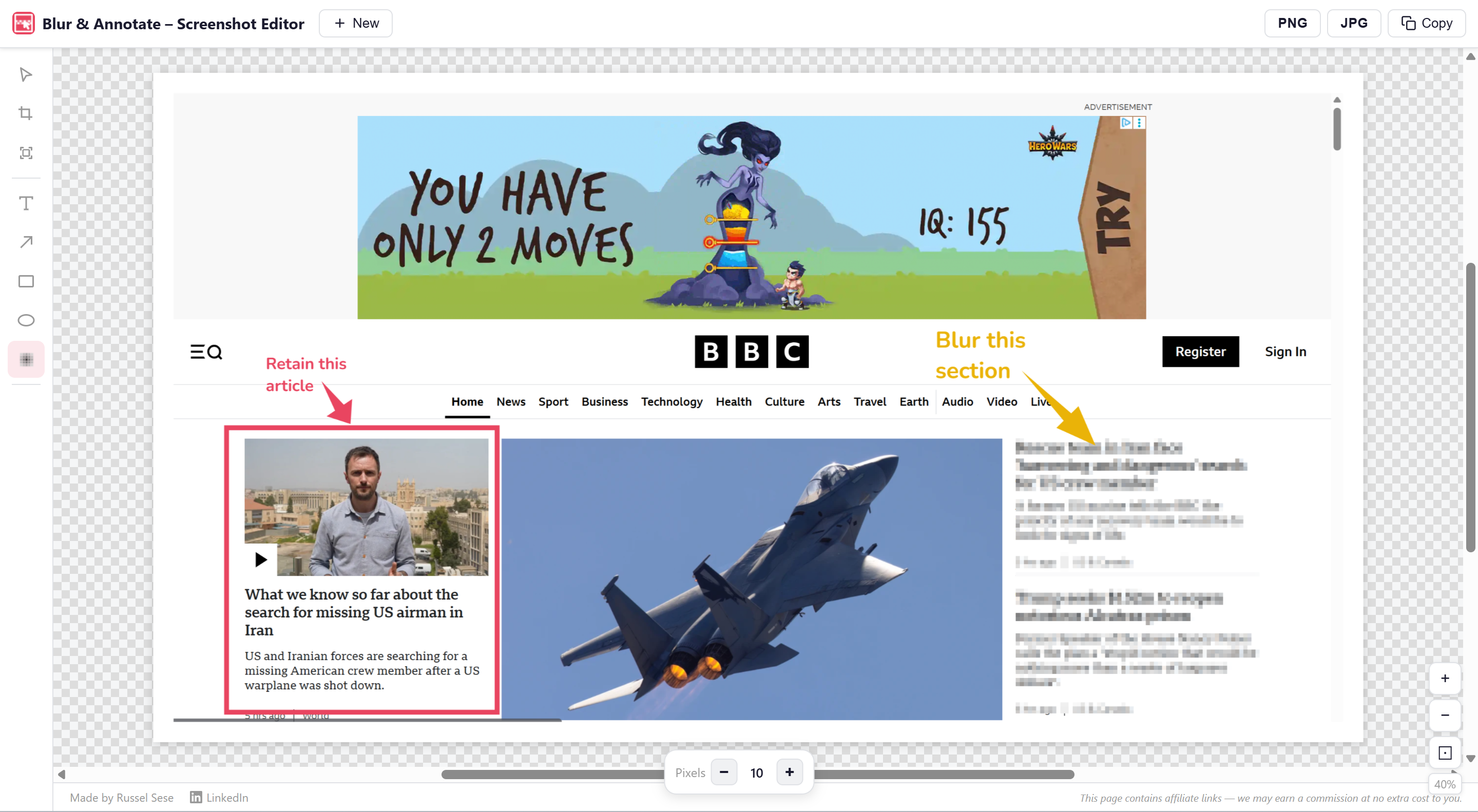
Select any tool from the sidebar and start drawing immediately. Arrows, rectangles, ellipses, and text labels all support color and thickness control from the floating toolbar.
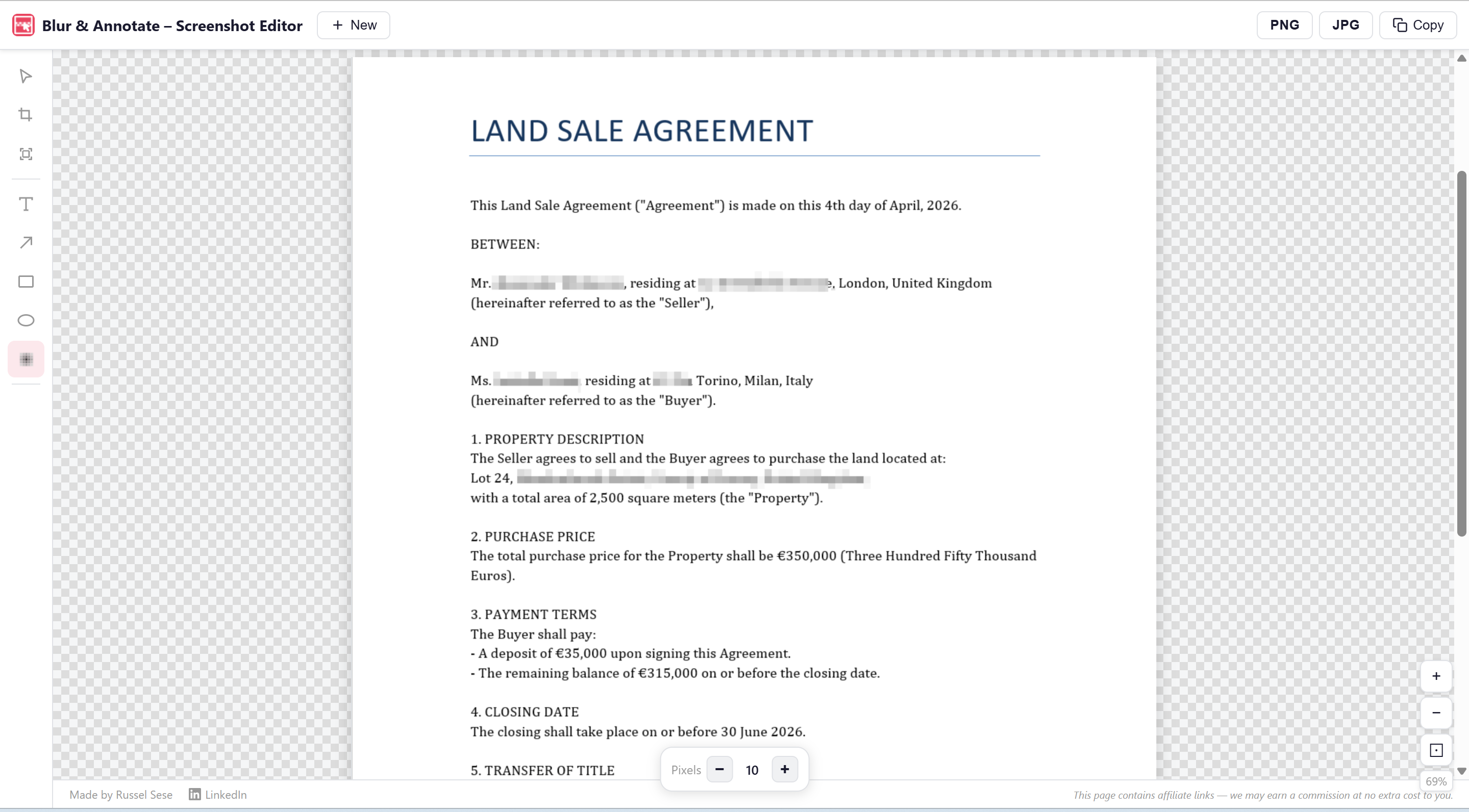
The blur tool lets you draw a region over any part of the image to pixelate it. Adjustable pixel block size (4–64 px) lets you control how obscured the area appears.
Drag and drop a file, browse your filesystem, or paste a screenshot from the clipboard. The editor opens immediately, ready to annotate.
How it works
Opens a clean editor in a new Chrome tab. No setup, no sign-in, no popups.
Drag & drop, browse for a file, or paste a screenshot from the clipboard with Ctrl+V.
Pick a tool, draw arrows and shapes, add text labels, or drag the blur tool over anything sensitive.
Save as PNG or JPG, or copy the finished image to your clipboard for instant pasting anywhere.
Privacy
Blur & Annotate runs entirely in your browser. Your images never leave your device.
Images are never sent to any server. All editing happens locally in your browser tab.
Zero analytics, zero telemetry, zero usage data collected or transmitted.
Install and use immediately. No account, no email address, no onboarding flow.
Does not request access to your tabs, browsing history, or any website data.